This page is dedicated to email. It shows how to open a new email account, send and receive emails, and much more. If you prefer to learn by watching a video, then click below. If you’re already comfortable using email, you can skip to the exercises using the button below.

You would be right to ask, why are we focusing on Gmail with this tutorial? There are many free email providers out there, and they are all great!
The simple answer is, we had to pick one! The instructions for Gmail are more or less the same as for any email provider. If you would prefer to use Outlook or Yahoo, or any other provider, you are more than welcome to!
Click here for detailed instructions on setting up a Gmail account.
Your password is how you prove that it’s you accessing your email account, and not someone else. It is important that your password cannot be guessed easily, and that you keep it private!
First and foremost, your password should be memorable. The most secure way to store your password is in your memory. That makes it harder to lose and people can’t steal it!
Choose a word that you will remember. It can be something significant to you (e.g. the street you grew up on) or any old thing (e.g. your favourite animal). The key is that you remember it!
Then, apply a few modifications to your word. Each modification makes it much harder to guess. For example
Word: dolphin
Password: Dolph!n4
As we mentioned before, the best place to save your password is in your….

But if you’re anything like me, your memory sometimes (or in my case often) lets you down!
Here are some other options for storing your passwords. Some are better than others. Move your mouse over them to see which are good, which are bad, and why.
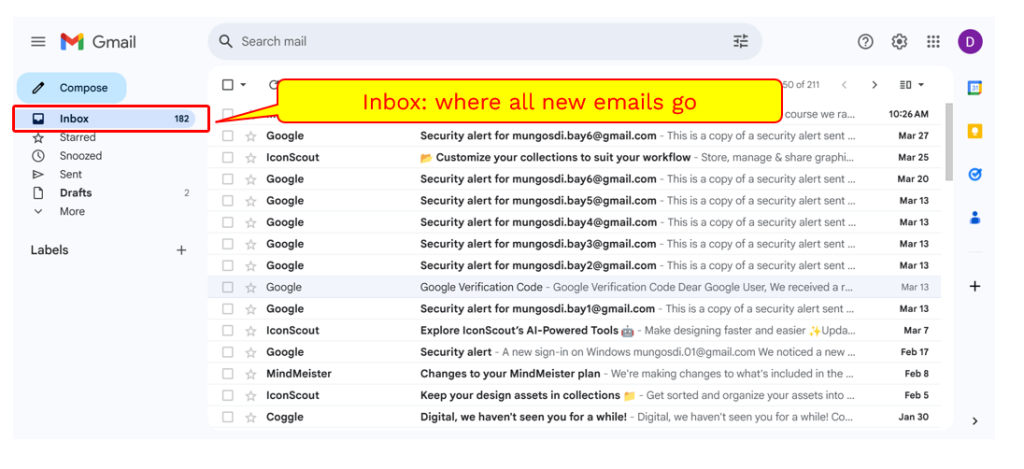
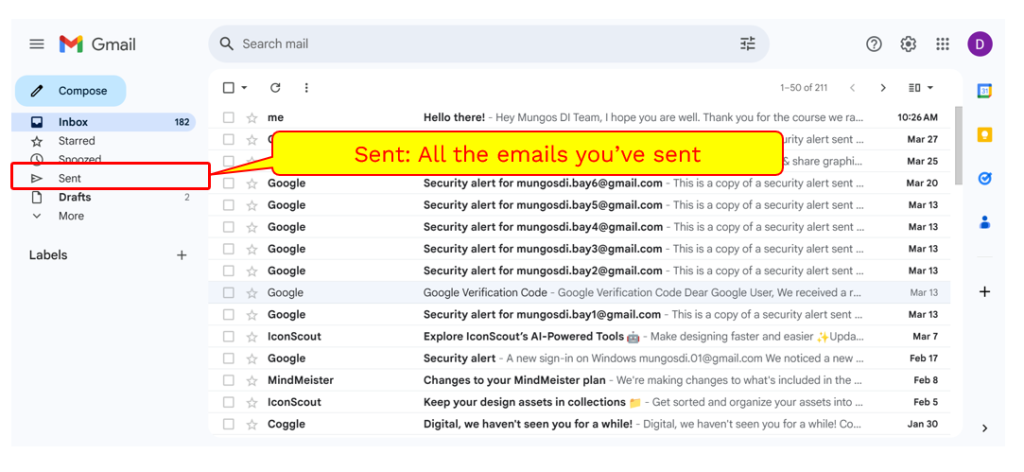
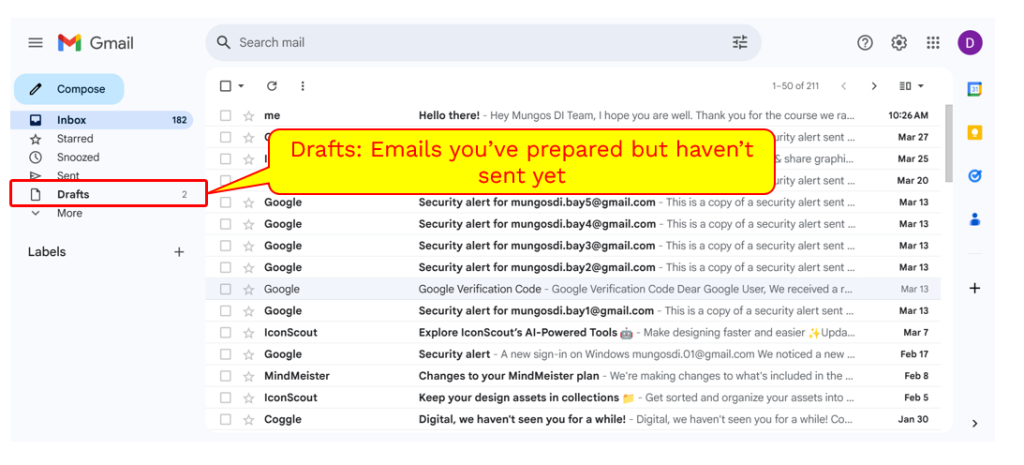
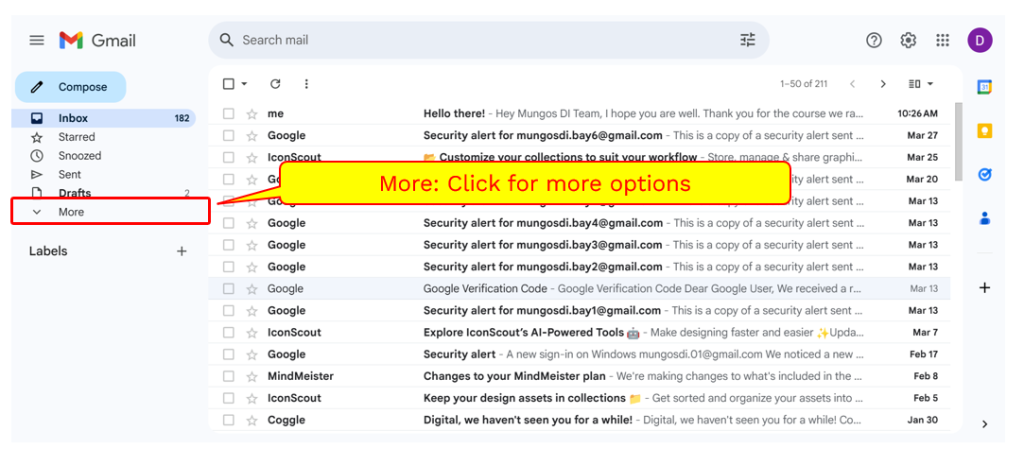
Using the arrows below, explore the different elements of the home page of Gmail. (If you have a different email provider, see if you can identify all the same features in your account!)




When replying to emails, there are two main options: Reply, and Reply All. The differences are outlined below:
Reply: Send a reply email to only the person who sent you the email (aka not to any other recipients or any of the people on CC)
Reply All: Send a reply email to all the people involved in the first email (aka all the intended recipients and all the people on CC)
You can also forward an email to another person. This will not notify the original sender. This is useful if you want a second opinion or need to share the email with someone else.
Watch the video below for more tools and tips for your Gmail account. Once again, if you don’t have Gmail but some other provider, see if you can find the same tools on your account. This may require some Google-ing!
Email is used for so many types of communication. We all think of it as a professional tool, but it is also used to share information, connect with family, share invites, book appointments, leave feedback, and much more!
Below we explore four different styles of communication. Two are formal, two informal.
Casual emails are for chat amongst friends. There are no rules.
What are the elements?
Informal emails are for people you know personally and have a rapport with. They generally still have a specific purpose - E.g. an invitation
What are the elements?
Formal emails are for communication with people you do not know personally, such as a doctor or advisor.
What are the elements?
Professional emails are for use in the workplace. They are polite, clear, and generally use few words.
What are the elements?
There are standard ways to start and end an email. These vary a little depending on which type of email you want to send, but generally have a similar structure.
Greetings:
Most emails begin ‘Dear …….’ before dropping down two lines to begin the main email. For example:
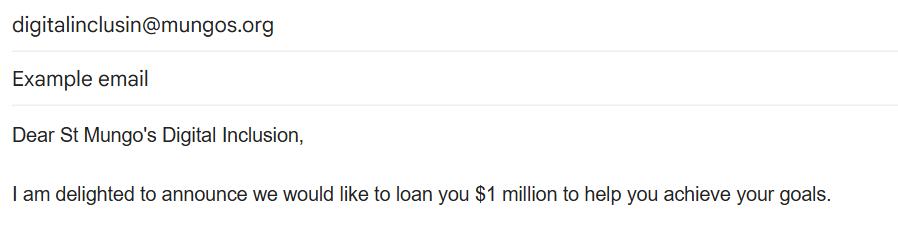
See below for our examples of greetings by each category:
Hey
Hey/Hi
Dear …..
Hi …..
Sign offs:
Emails are normally signed off in a similar way, it’s just the word choices that are different per each style.
The way to sign off an email is to finish what you are writing, then drop down one or two lines and leave a ‘sign off’. Then drop the same number of lines and leave your name. For example:

See below for our examples of sign offs by each category:
See you!
Cheers,
Love,
Thanks,
See you soon,
Best wishes,
Kind regards,
Yours faithfully, (for people you don’t know)
Yours sincerely, (for people you know)
Thank you,
Best wishes,
Regards,
Look at the examples below, see if you can figure out which of these emails is formal, casual, informal, and professional. Hover your mouse over the flip boxes when you’re ready to check the answers.


To complete these exercises, you will need to use your own email account to send your practice emails.
Working with a tutor:
Ideally, you would be working through these with a tutor, in which case, send the emails you create in the exercises below to your tutor’s email. That way, you practice actually sending emails, and your tutors can give you feedback on your tone. (Tutors – don’t use your personal address! If you don’t have a St Mungo’s email address then create one quickly using Gmail!)
Working on your own:
If you are working through these exercises on your own, send your emails to mungosdi.01@gmail.com. That way you can still practice actually sending emails.
First, try sending an email to one of your friends to invite them to your birthday party.
You can make up whatever details you like about the party. This is in a casual tone so write it however you like!
Send an email that accompanies your job application. Include:
Send a complaint email to a restaurant that gave you bad service last night. Include:
Send an email to cancel and rearrange your doctors appointment next Tuesday. Include:
Send an email that accompanies your job application. Include:
Send an email requesting a reservation for 20 at a pub for your friend’s birthday party.
Send an email requesting your full record of information stored by St Mungo’s.
Did you know – you have the right to request any information St Mungo’s has about you and we have to comply within 30 days?
© St Mungo’s 2026